From EdgeShaping 2026.10.0, Claude can read your site’s AI bot records directly. Setup takes five steps, and none of them happen inside EdgeShaping.
What you need
| Requirement | Condition |
|---|---|
| WordPress | 6.9 or later |
| MCP Adapter | 0.7.0 or later (the official plugin from WordPress.org) |
| EdgeShaping | 2026.10.0 or later (Lite and paid alike) |
| Your site | Served over HTTPS and reachable from the internet |
| Claude | An account where custom connectors offer “Request headers” |
“Request headers” is a beta feature and does not appear on every account. If you don’t see it, use the “Claude Desktop only” method near the end of this article instead.
Claude’s connectors reach your site from Anthropic’s side. A local development environment, or a site visible only from inside your network, cannot be connected. On the free plan you can have one custom connector.
Step 1 — Activate the MCP Adapter
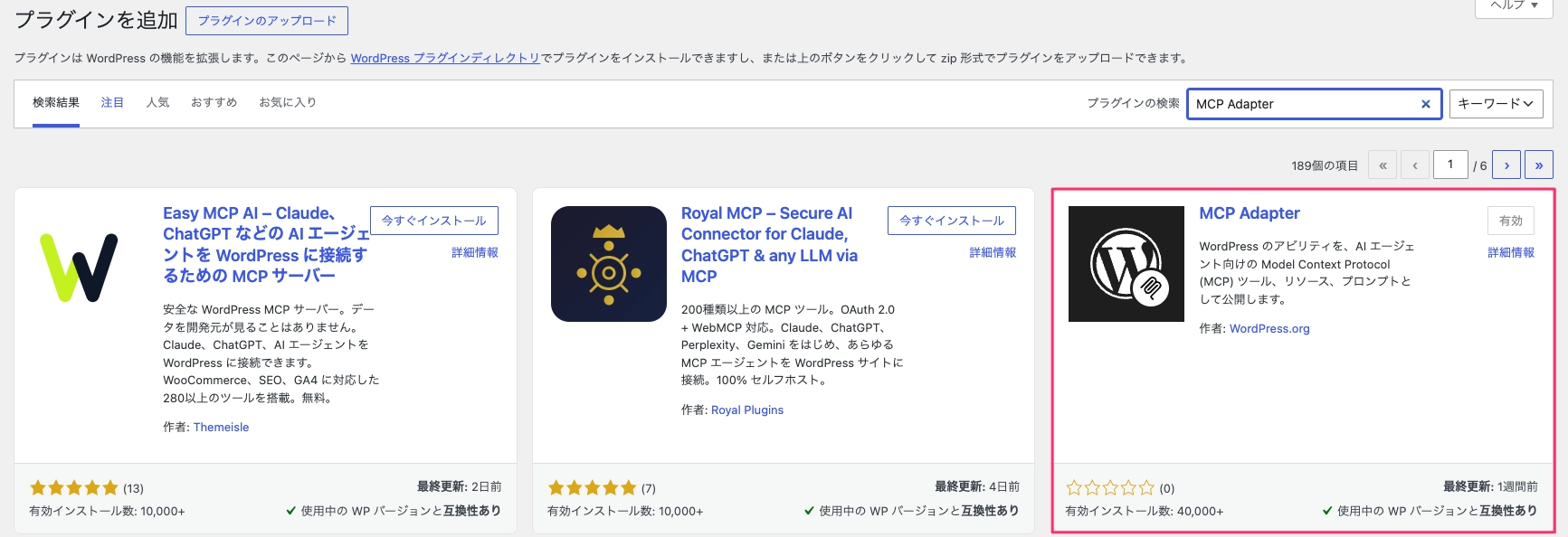
In the WordPress plugin installer, search for “MCP Adapter” and install the one whose author is WordPress.org — the results include other plugins with similar names. Once activated, this URL on your site becomes an MCP server.
https://(your-site)/wp-json/mcp/mcp-adapter-default-serverIf EdgeShaping is installed, its records become readable through that server. There is nothing to configure on the EdgeShaping side.
Step 2 — Create an application password
An application password is WordPress’s built-in credential for external apps. It is separate from your login password and can be revoked on its own later.
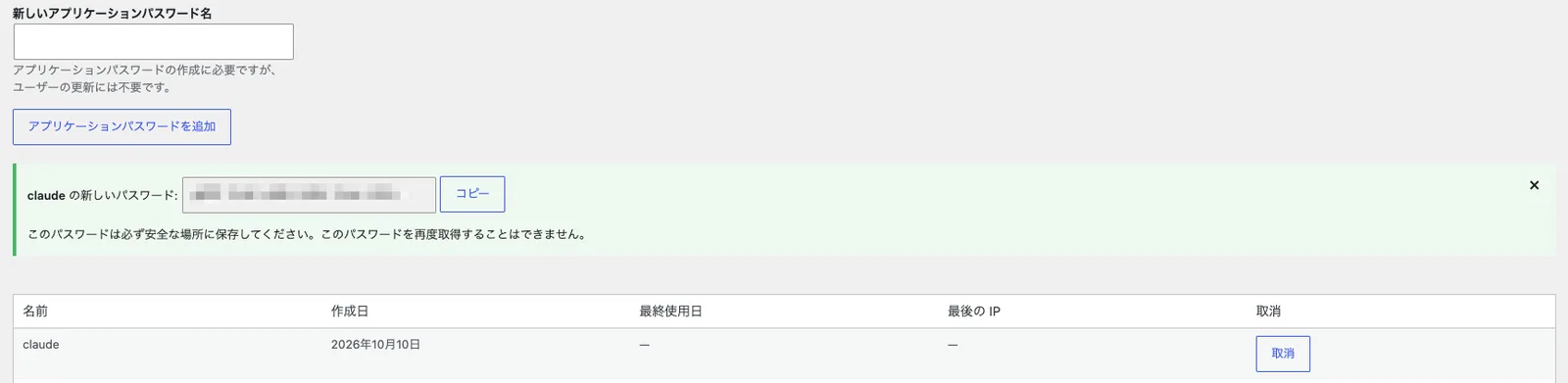
- Open Users → Profile in the admin
- Near the bottom, enter a name (for example, Claude) under “New Application Password Name” and press “Add New Application Password”
- Copy the 24-character password that appears — it is shown only once
If this is only for your own use, issuing it on your own account is fine.
Step 3 — Build the header value
Claude’s connector has no fields for a username and password. Instead you supply a single value: username:password rewritten in Base64. You do this conversion once, on your own machine.
macOS (Terminal)
printf 'Basic %s' "$(printf '%s' 'username:application-password' | base64)" | pbcopyWindows (PowerShell)
"Basic " + [Convert]::ToBase64String([Text.Encoding]::UTF8.GetBytes("username:application-password")) | Set-ClipboardReplace username with your WordPress login name and application-password with what you copied in step 2. Keep the colon between them and the surrounding quotes. Nothing prints to the screen; the value lands on your clipboard.
For a user named taro with the application password abcd efgh ijkl mnop qrst uvwx, the result looks like this.
Basic dGFybzphYmNkIGVmZ2ggaWprbCBtbm9wIHFyc3QgdXZ3eA==This value is not encrypted — it converts straight back to the original username and password. Treat it exactly like a password, and don’t paste it into chats or notes.
Step 4 — Add the connector in Claude
Open Settings → Connectors in Claude and choose Add → Add custom connector. The flow is the same on web and in the desktop app, and it spans two screens: press “Continue” on the first, “Add” on the second. Four values go in.
| Screen | Field | Value |
|---|---|---|
| First | Name | Anything (for example, “Our site”) |
| First | MCP server URL | The URL from step 1 |
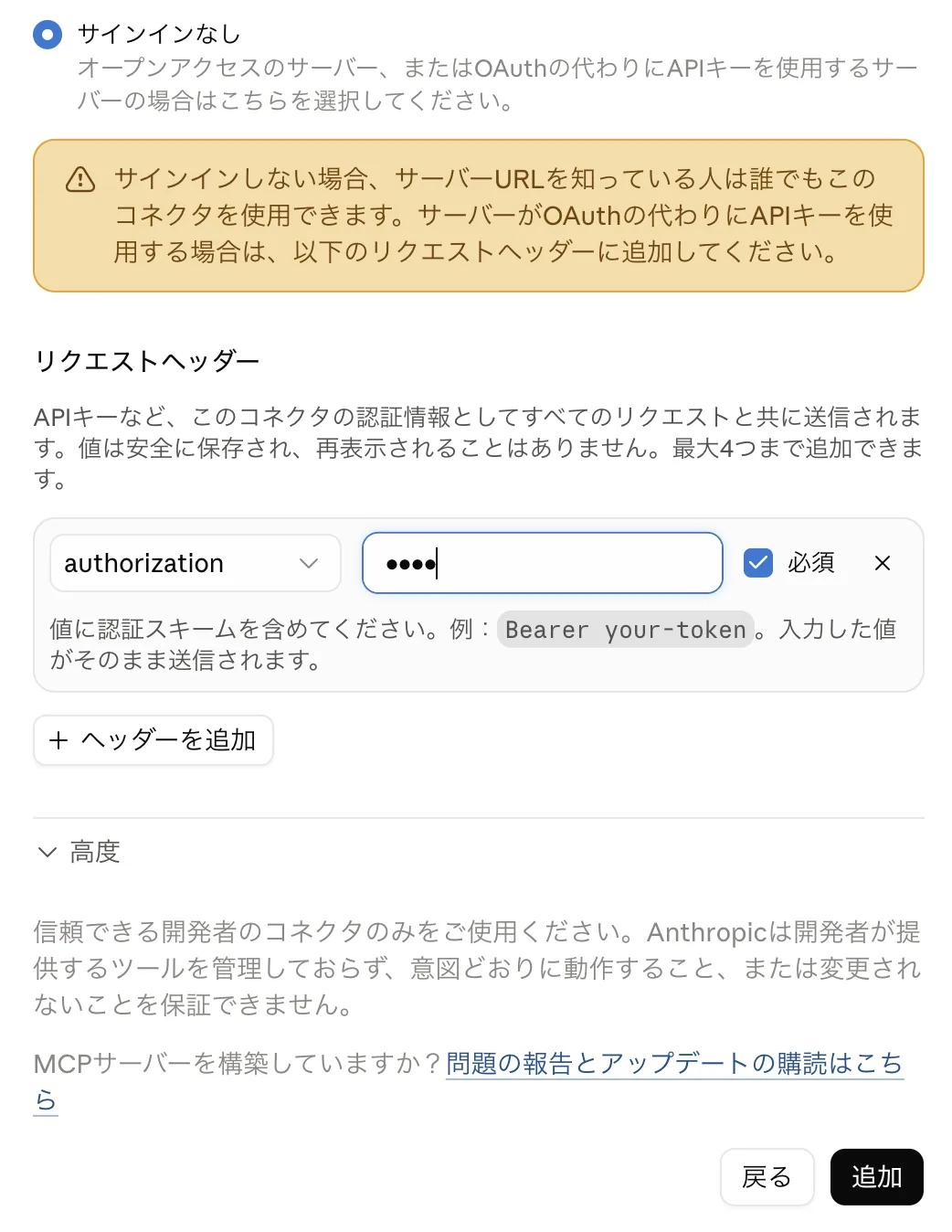
| Second | Authentication | “No sign-in” |
| Second | Request headers | Choose authorization from the list, paste the value from step 3, and leave “Required” checked |
Three things to watch for.
- Authentication must be set to “No sign-in”. “Sign in now” is selected by default, and a connector saved that way will not connect, because the MCP Adapter does not support that sign-in method (OAuth).
- Authentication and request headers cannot be changed after the connector is created. To fix a mistake, delete the connector and add it again.
- Once saved, the header value is never displayed again.
Choosing “No sign-in” raises a warning, but that warning is aimed at servers with no authentication at all. Here the header value is the authentication, and anyone without it is rejected by WordPress.
Step 5 — Confirm the connection
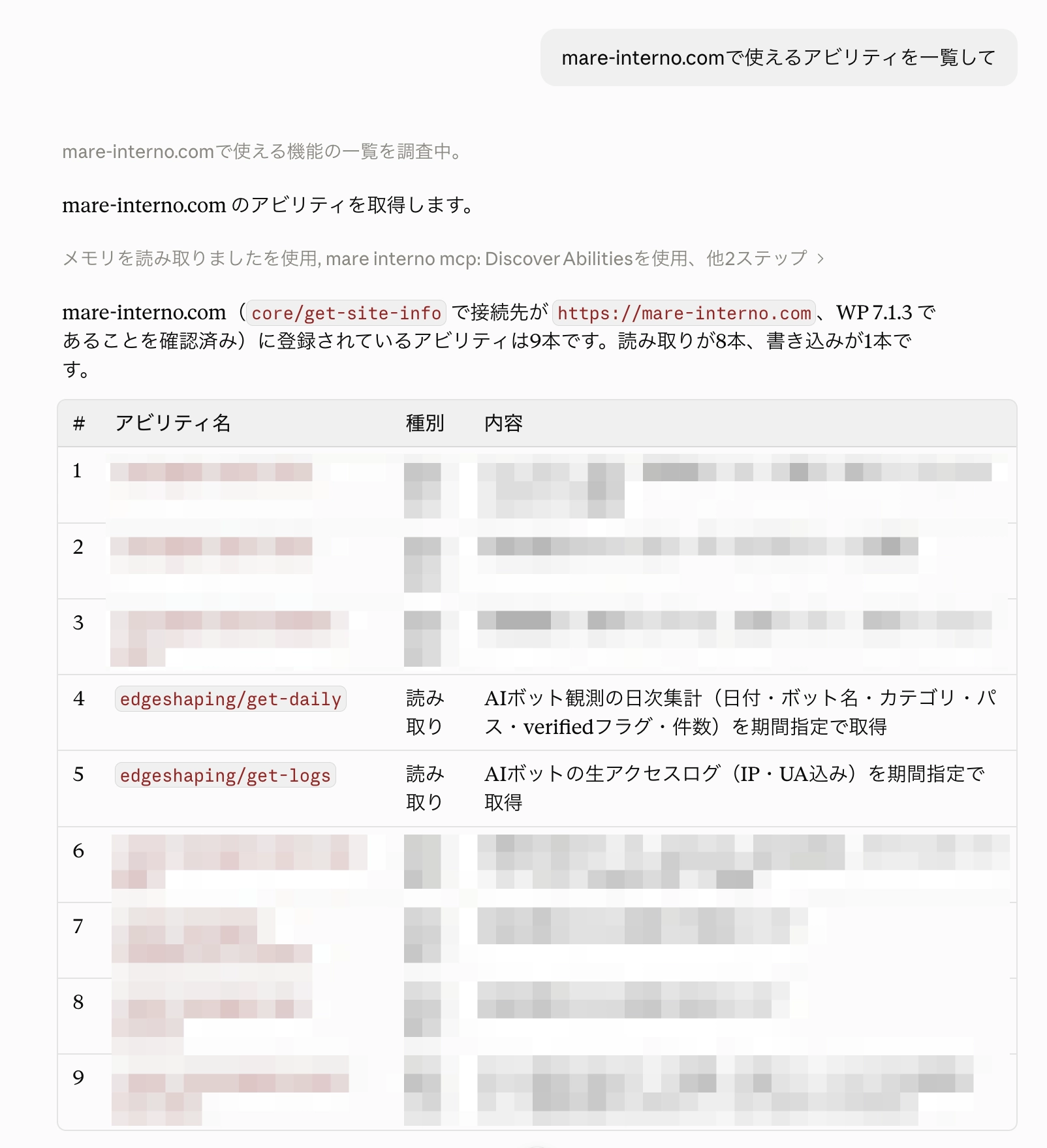
Open a new chat, use + → Connectors in the composer to switch your new connector on, and ask:
List the abilities available on this site
If edgeshaping/get-daily appears in the list, you’re connected.
Why step 3 is necessary
Connection and authentication belong to the MCP Adapter and WordPress core, not to EdgeShaping. EdgeShaping only registers read-only features through WordPress’s Abilities API; it does not ship an MCP server of its own.
The MCP Adapter authenticates whoever connects as a WordPress user, and the method available to an external AI today is the application password. The “enter a URL, sign in, press allow” flow (OAuth) is not supported yet. The conversion in step 3 bridges that gap.
When the MCP Adapter does support OAuth, connecting will be a matter of entering a URL and approving it. EdgeShaping will not need an update for that — only the authentication section of this article will change.
There are also plugins that add OAuth on top of the MCP Adapter. With one installed you can connect with just a URL and an approval, but we have not verified that combination with EdgeShaping. Configuration and support for that route belong to the plugin in question.
What you can do once connected
Claude sees only three tools, all from the MCP Adapter (mcp-adapter-discover-abilities, mcp-adapter-get-ability-info, mcp-adapter-execute-ability). There is no tool named EdgeShaping. EdgeShaping’s features — its abilities — are invoked through those three. Claude handles the calls, so you simply ask questions.
| Edition | Abilities available | What you can read |
|---|---|---|
| Lite | edgeshaping/get-daily | Daily totals of AI bot access |
| Paid | edgeshaping/get-daily | The same totals, with each bot’s purpose category |
| Paid + Plus license | The above, plus edgeshaping/get-logs | Individual access records |
All of them are read-only. No ability can modify or delete EdgeShaping’s records.
Some questions to try:
- Which AI bot visited most last week?
- Put the ten pages AI bots read most this month in a table
- Did GPTBot access go up compared with last month?
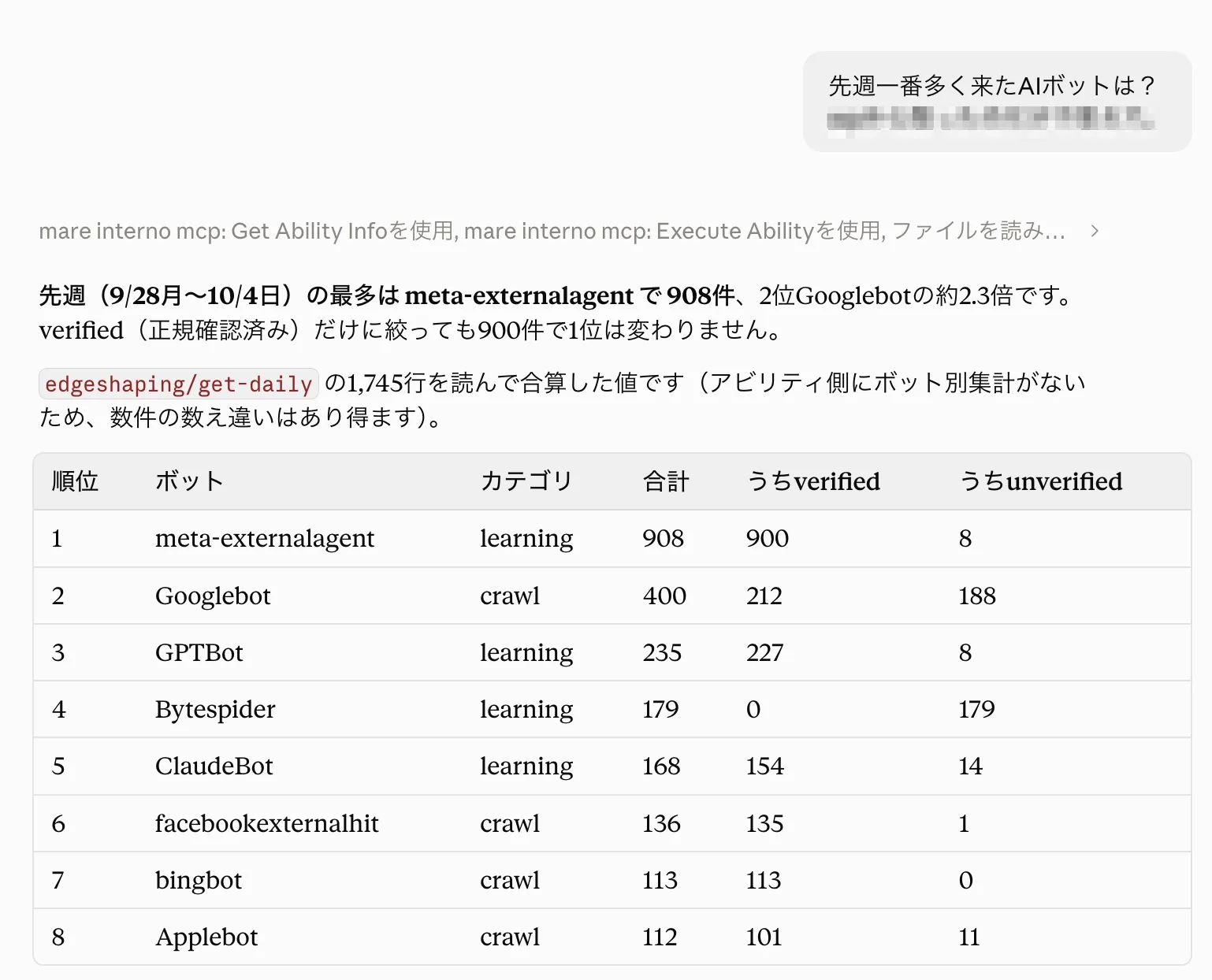
Two things worth knowing:
- The same connector exposes abilities registered by your other plugins too, and some of those may be able to write. Check the list once.
- EdgeShaping records Claude’s own MCP traffic as
Claude-Useraccess.
Claude Desktop only
On accounts where “Request headers” doesn’t appear, you can connect by editing Claude Desktop’s configuration file instead. That route takes the username and application password as-is, so the conversion in step 3 isn’t needed. Steps 1 and 2 are the same.
| Connector (steps 3–5) | Claude Desktop config file | |
|---|---|---|
| What you enter | A URL and one converted value | URL, username and password, as-is |
| Also required | Nothing | Node.js 22 or later |
| Where it works | Web, desktop and mobile | Only Claude Desktop on that one computer |
In Claude Desktop, go to Settings → Developer → Edit Config to open claude_desktop_config.json, and add:
{
  "mcpServers": {
    "my-site": {
      "command": "npx",
      "args": ["-y", "@automattic/mcp-wordpress-remote@latest"],
      "env": {
        "WP_API_URL": "https://(your-site)/wp-json/mcp/mcp-adapter-default-server",
        "WP_API_USERNAME": "username",
        "WP_API_PASSWORD": "application-password",
        "OAUTH_ENABLED": "false"
      }
    }
  }
}
If mcpServers already exists, add only the "my-site" block inside it. Save, restart Claude Desktop, and verify with the same question as step 5.
mcp-wordpress-remote here is a relay that sits between Claude Desktop and your site. It performs the username-and-password conversion on your behalf.
Sharing access with someone outside
EdgeShaping’s abilities are readable at the Contributor role and above. To show your analysis to an agency or a consultant, you don’t need to hand over an administrator account.
- Create a new user in the Contributor role
- Issue an application password on that user
- Have them connect with that username and application password
To end the arrangement, revoke that application password. The EdgeShaping admin screens remain administrator-only, as before.
When it doesn’t work
| Symptom | Cause | Fix |
|---|---|---|
| The connector says it needs to reconnect, or no tools appear | Authentication was saved as something other than “No sign-in” | Delete the connector and add it again with “No sign-in” |
No abilities starting with edgeshaping/ in the list | WordPress is 6.8 or earlier, or EdgeShaping is older than 2026.10.0 | Update both |
| Running an ability returns a permission error | The connected user is a Subscriber | Move them to Contributor or above |
You can check the authentication without going through Claude at all. Run this in a terminal (in Windows PowerShell, use curl.exe instead of curl):
curl -s -u 'username:application-password' 'https://(your-site)/wp-json/wp/v2/users/me'| What comes back | What it means |
|---|---|
| Your user details | Authentication works — review what you entered in the connector |
incorrect_password | The username or the application password is wrong |
rest_not_logged_in | The credentials never reached WordPress. Something — your server, a CDN, or a security plugin — is stripping the Authorization header |